
Vox Seas Controls, Settings and Servers
Use Vox Seas settings to adjust sound, interface displays and visual options, or choose another server from the Roblox experience page.
Follow the on-screen prompts to interact and use skills. Open Settings with the sidebar gear, and use the Servers tab on the Roblox experience page to join another server.
Interactions and Skill Prompts
Move close to an NPC or entrance until an interaction prompt appears, then press E for the displayed action, such as Talk or Enter. Choose a dialogue response to continue a conversation or open a service.
The skill panel reflects your equipped combat option. Press the key shown beside an unlocked skill, such as Z or X, and wait for its cooldown countdown to finish before using it again. Locked skill icons show progression requirements.
Open current objectives with the sidebar book icon and Settings with the gear icon. The main menu also offers START GAME, SERVER LIST, PORTS and CONFIG.
Gameplay, Audio and Interface
Select the sidebar gear to open Settings, then scroll to a category and change its switches, choices or sliders.
Gameplay
| Setting | Choices |
|---|---|
| Camera Shake | Off, On |
| Party Invites | Nobody, Friends, Everyone |
Audio
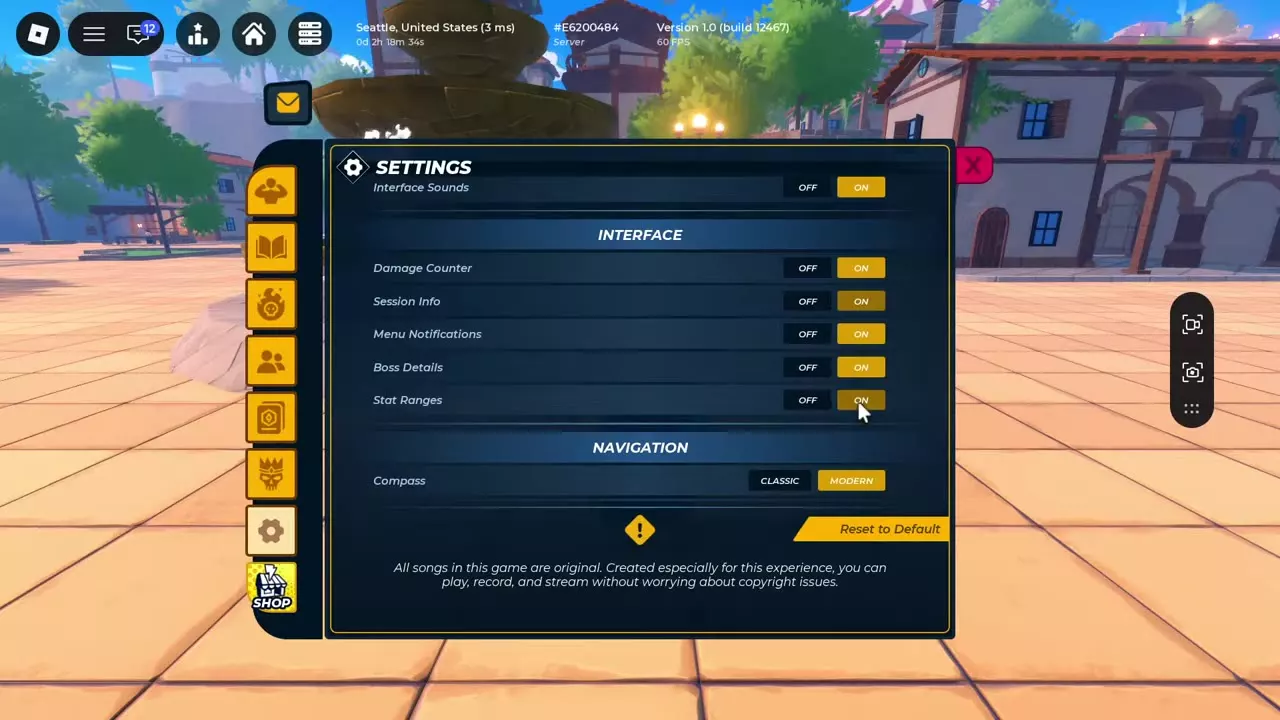
Adjust the Master, Music, Effects, Ambient, Voice and Emotes volume sliders separately. Reward Orb Sounds and Interface Sounds each have an Off/On switch. For a quieter soundtrack, lower Music Volume while leaving the other sliders at your preferred levels.
Interface
Damage Counter, Session Info, Menu Notifications, Boss Details and Stat Ranges each have an Off/On switch. Turn on Session Info to show the server region, latency and version at the top of the screen.
Use Reset to Default to restore the settings.
Performance and Preloading
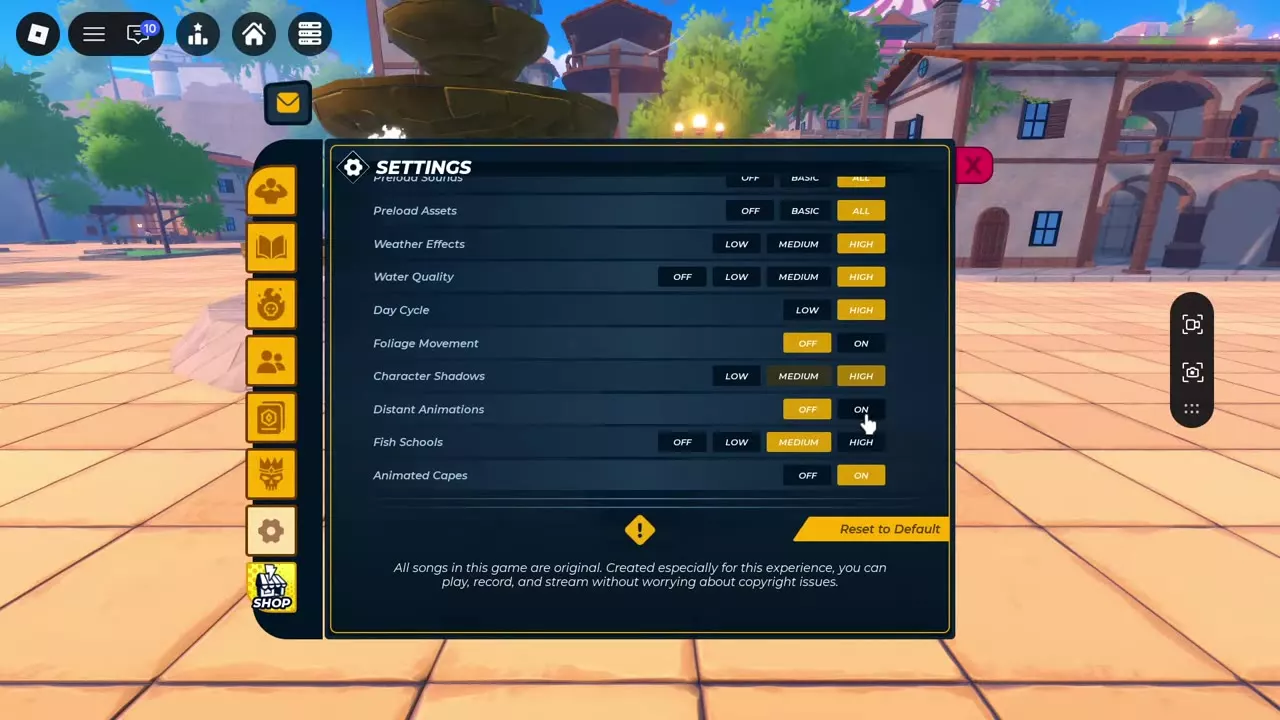
Open Settings → Performance to choose preloading and visual-detail options. Preload Animations, Preload Sounds and Preload Assets each have Off, Basic and All choices.
| Visual setting | Choices |
|---|---|
| Weather Effects | Low, Medium, High |
| Water Quality | Off, Low, Medium, High |
| Day Cycle | Low, High |
| Foliage Movement | Off, On |
| Distant Animations | Off, On |
| Animated Capes | Off, On |
| Character Shadows | Low, Medium, High |
| Fish Schools | Off, Low, Medium, High |
The loading screen displays resource progress and offers Click to skip.
Join Another Server
- Open the Vox Seas experience page on Roblox and select Servers.
- Browse Servers My Friends Are In or Other Servers. Use Sort By and Exclude Full Servers to narrow the list.
- Use Refresh to update the list or Load More to see additional servers.
- Compare the current population and maximum on each card, then select Join and wait for the game to load.
Server cards include both 12-player and 20-player maximums, so read the limit on the card you choose. After joining, turn on Session Info in Settings → Interface to see the connected server's region, latency and version.
Respawn Your Character
- Open the Roblox menu and select Respawn, labeled with the R shortcut.
- Choose Respawn in the confirmation dialog. Choose Don't Respawn if you want to cancel.
- Wait for your character to return with restored health.
For the consequences of defeat, see Bounty and season rewards.
Navigation and Combat
- Find map markers, set a return point and use Home with the navigation and movement guide.
- Learn attack and PvP controls in combat and open-world PvP.
- Explore the Permanent Private Server service in game passes and shop products.